How to force quit a frozen app on Linux (Ubuntu, GNOME, Wayland)
Windows has Ctrl+Alt+Del and macOS has ⌘+⌥+esc. On Ubuntu, a frozen app often leaves people unsure what to do. Here is every method, from fastest to most thorough.
1. A Force Quit shortcut (fastest)
Install Force Quit for Linux and press Super+Alt+Esc. A macOS-style window lists your open apps. Select the frozen one, press Return, and confirm.
git clone https://github.com/adgsenpai/AppleLinuxLikeForceQuit.git
cd AppleLinuxLikeForceQuit && ./install.sh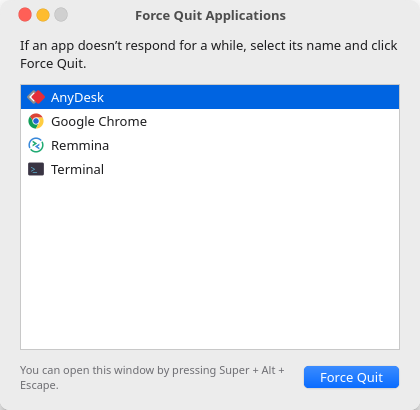
2. GNOME's “not responding” dialog
If a window stops answering the compositor's pings, GNOME eventually shows “App is not responding” with Force Quit and Wait buttons. It works, but only once GNOME notices, and only for the window you're trying to use.
You can make it appear sooner by lowering the check interval (in milliseconds):
gsettings set org.gnome.mutter check-alive-timeout 30003. System Monitor
Open System Monitor from the app grid, find the process on the Processes tab, right-click it and choose Kill (Ctrl+K). The catch is that it lists processes, not apps. Chrome alone can show twenty entries.
4. The terminal
# by name (matches the full command line)
pkill -9 -f firefox

# by PID
pgrep -a firefox     # find it
kill -9 12345        # kill it

# everything owned by an app's systemd scope
systemctl --user list-units 'app-*' --type=scope
systemctl --user kill -s KILL app-gnome-firefox_firefox-12345.scope
Try a plain kill (SIGTERM) first if you want the app to have a chance to save. Use -9 (SIGKILL) when it's truly stuck, because a frozen app can't block it.
5. Why xkill doesn't work any more
xkill lets you click a window to kill it, but it talks to the X server. On Wayland, which Ubuntu has used by default since 21.04, it can only see apps running under XWayland. Native Wayland apps are invisible to it, and so is most of GNOME. Wayland doesn't let one program inspect another program's windows. That's why Force Quit for Linux finds apps through systemd scopes instead.
Quick comparison
| Method | Speed | Works on Wayland | Shows apps (not processes) |
|---|---|---|---|
| Force Quit for Linux | One shortcut | Yes | Yes |
| GNOME not-responding dialog | Wait for timeout | Yes | One window |
| System Monitor | Slow | Yes | No |
pkill / kill | Fast if you know the name | Yes | No |
xkill | Fast | XWayland apps only | Yes |
When the whole desktop is frozen
If nothing responds, switch to a text console with Ctrl+Alt+F3, log in, and run pkill -9 -u $USER firefox (or whatever is stuck). Switch back with Ctrl+Alt+F2 or F1. As a last resort, the kernel's SysRq keys, if enabled, can kill the process using the most memory: Alt+SysRq+F.